Apple Mail Configure Email Services
Apple Mail
Configure Email ServicesHere's how to configure your email services for Apple Mail.
Server addresses, security information and additional support can be obtained from the email provider.
- From the desktop, navigate: .
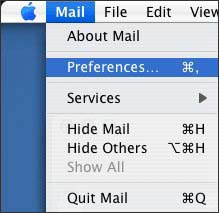
- From the Menu bar, click:Mail>Preferences.
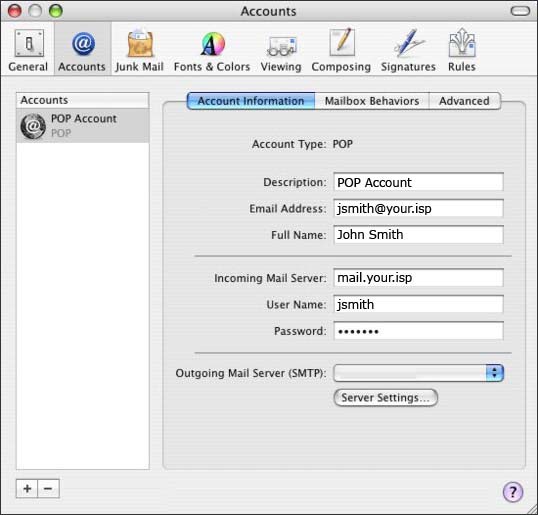
- From the Accounts tab, clickAccount Information, ensure the settings are correct then clickServer Settings.Mac® OS 10.5 and later, click .
- Description
- A unique name for the account.
- Email Address
- The email address for the account.
- Incoming Mail Server
- The POP / IMAP server address.
- User Name
- The email account login name.Usernames may vary depending on ISP (e.g. - john.smith@your.isp or jsmith).
- Password
- The password required for account access.
- Outgoing Mail Server
- The outgoing mail server for the email account.
- Enter the Description and Server Name then clickAdvanced.If using Mac OS 10.4 or 10.3 skip to step 5.
- Ensure the required settings are correct then clickOK.
- From the Advanced section, ensure the required settings are correct then click thered dotlocated in the upper-left corner.